
Topaz Gigapixel Pro: Image Upscaling Built for the Studio
Topaz Gigapixel Pro helps studios and creative teams enlarge images while preserving important details. It can upscale photos, graphics, and artwork by up to 6x, with output dimensions reaching 32,000 pixels wide and a total of 1 billion pixels. Instead of simply stretching pixels, its AI models work to restore detail and produce sharper results for print and display.
Topaz Gigapixel Pro Information
- Developer: Topaz Labs
- Platform: Windows
- Official Website: Topaz Labs
Topaz Gigapixel Pro Overview

Topaz Gigapixel Pro is designed to enlarge images while retaining as much detail as possible. It supports a wide range of creative and professional work, including game graphics, commercial printing, satellite imagery, and other projects where image quality matters.
You can use Gigapixel as a standalone application or integrate it into existing workflows through its Photoshop and Lightroom Classic plugins. The Pro edition adds features for professional teams, including team seat management and offline activation. Its commercial-use terms may also differ depending on how the application is used and the organization’s circumstances.
The application includes more than ten AI models, each designed for different image types and quality issues. Some models process images directly on your computer, while generative models can run locally on a capable GPU or use Topaz cloud processing. If you prefer not to choose settings manually, Auto Mode analyzes an image and selects a suitable model and settings for the task.
Also Check Out: Atomix VirtualDJ Pro Infinity
Topaz Gigapixel Pro Key Benefits
- High-resolution output: Enlarge images by up to 6x, with dimensions reaching 32,000 pixels wide and a total output of up to 1 billion pixels.
- Support for different image types: Work with photos, RAW files, compressed images, logos, interface graphics, digital artwork, CGI, and AI-generated images using models suited to different needs.
- Designed for team workflows: Team seat management helps multiple users work with the application.
- Local and cloud processing: Run supported models on your PC or use cloud processing for compatible generative models.
- Fits existing creative workflows: Use Gigapixel on its own or send images from Photoshop and Lightroom Classic for processing.
- Offline activation: An offline activation option supports use in environments where an internet connection is restricted or unavailable.
- Simpler model selection: Auto Mode recommends settings for each image, while the Compare tool helps you evaluate different models before choosing a result.
Topaz Gigapixel Pro Key Features
Upscaling and Output Size
- Maximum Output: Gigapixel Pro can enlarge images by up to 6x, with a maximum width of 32,000 pixels and an output size of up to 1 billion pixels. A sample image demonstrating 1-billion-pixel output is available on the product page.
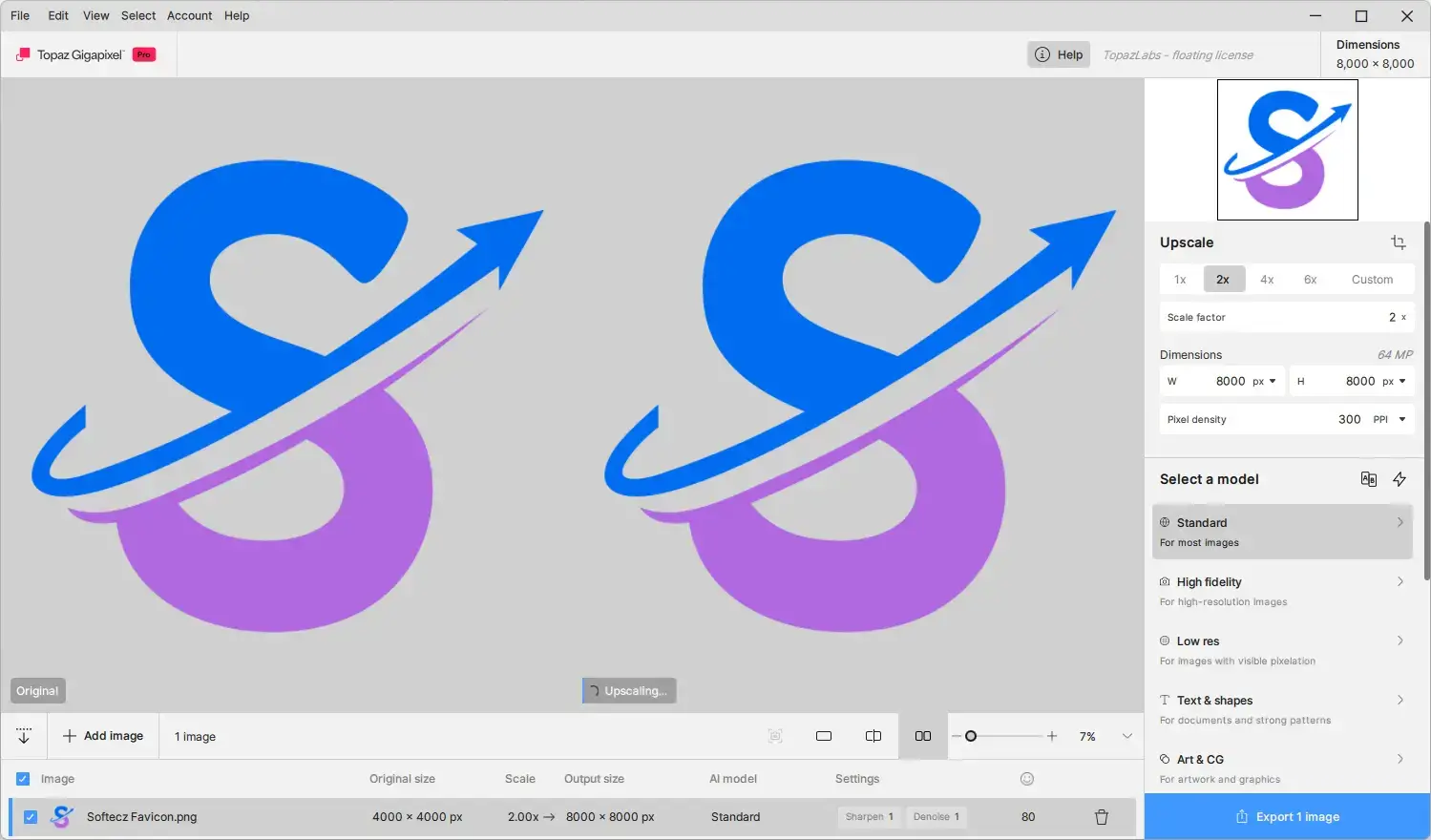
- Scale and Dimension Controls: Choose a scale factor or enter specific output dimensions. You can also adjust the pixel density of the resulting image.
- Auto Mode: Select the lightning-bolt option to let the application analyze the image and recommend a suitable model and settings. The recommended model is labeled accordingly, and the lightning-bolt control within individual model settings can automatically adjust that model.
- Manual Model Selection: Choose a model from the right-hand panel and adjust its settings to suit your image.
- Compare Tool: Compare the results from several AI models using the same image to decide which produces the most suitable outcome.
- Additional Settings: Enable or disable Face Recovery, Gamma Correction, and Grain. Gamma Correction processes the image in a higher-gamma color space.
- Crop Tool: Crop an image to a preset aspect ratio or specify a custom size before upscaling.
Core AI Models (Run Locally)
- Standard 2: A general-purpose model suited to most photos, graphics, and print projects. It aims to preserve the original image’s structure and detail. For smaller images, Standard Max may be worth trying.
- High Fidelity 3: Designed for high-resolution source images, this model aims to retain detail while reducing artifacts and avoiding an overly artificial appearance. It can be useful for modern photographs, RAW images, smartphone photos, portraits, landscapes, and wildlife.
- High Fidelity 2: Intended for images that already have good resolution and quality. It enlarges them without relying on aggressive reconstruction or excessive sharpening. High Fidelity 3 may be a better choice when preserving the appearance of grain or noise is important.
- Low Resolution 2: Built for small, heavily compressed images with limited detail. It attempts to recover useful information without making existing artifacts more noticeable. If false detail becomes an issue, Recover 2 or Wonder 3 may be worth testing.
- Text & Shapes: Designed for text, logos, user-interface elements, and geometric graphics. It focuses on clear edges, accurate shapes, and readable text.
- Art & CG: Suited to illustrations, digital artwork, 3D renders, and stylized graphics. It preserves clean edges, flat colors, and line work without unnecessarily adding photographic texture. For AI-generated images, Redefine offers another option for adding detail.
Generative AI Models
- Standard Max: A general-purpose generative upscaling model that combines elements of Standard v2 and Recover v2. Its Strength slider lets you control how strongly the generated detail blends with the original image.
- Wonder 2 and Wonder 3: Designed for low-resolution photos, particularly those with small faces, heavy noise, or blurred backgrounds.
- Recover 2 and Recover 3: Recover 2 focuses on faster processing, while Recover 3 is intended for heavily degraded or damaged images.
- Redefine (Realistic and Creative): Adds definition and detail to low-quality or AI-generated images. The Realistic option aims to retain a photographic appearance, while Creative allows more freedom in how details are reconstructed.
- Face Recovery: Detects human faces and attempts to restore their appearance, making it useful for blurry, low-resolution, or poor-quality portraits. Detected faces are grouped by confidence level, allowing you to choose which ones to enhance. A strength slider controls how sharp the faces appear relative to the background. Face Recovery 3 includes Realistic and Creative variants.
- Wonder 1: Available through cloud access in standard licenses and through local processing in the Pro edition.
- Working With Large Images: Generative models are generally better suited to smaller images, and the application recommends keeping them within 1024 × 1024 pixels. If you receive a warning about image size, reduce the image dimensions before processing. To create a larger final result, process the image at a suitable scale between 1x and 4x, depending on your system, export it as a new file, and continue working from that result.
Workflow and Interface
- Batch Processing: Add individual files or entire folders by dragging and dropping them into the application or using Browse Images. You can set shared output dimensions in Preferences under Upscale and Resize, making it easier to process a batch at the same size. Batches can use Auto Mode or a manually selected model, with the number of images you can process depending on your system resources.
- File List: Review each image’s filename, original dimensions, scale, output size, selected AI model, settings, and Face Recovery value. Images processed with Auto Mode are marked with a lightning-bolt icon. You can expand or collapse the list as needed.
- Preview Options: Choose Single, Split, or Side-by-Side view to inspect the results. When zoomed in, the navigation panel helps you move around the image. The camera icon saves a before-and-after snapshot at the current zoom level.
- Pixel-Accurate Import: Images open at 100% zoom so you can inspect their actual pixel dimensions. The Fit option displays the complete image within the preview area.
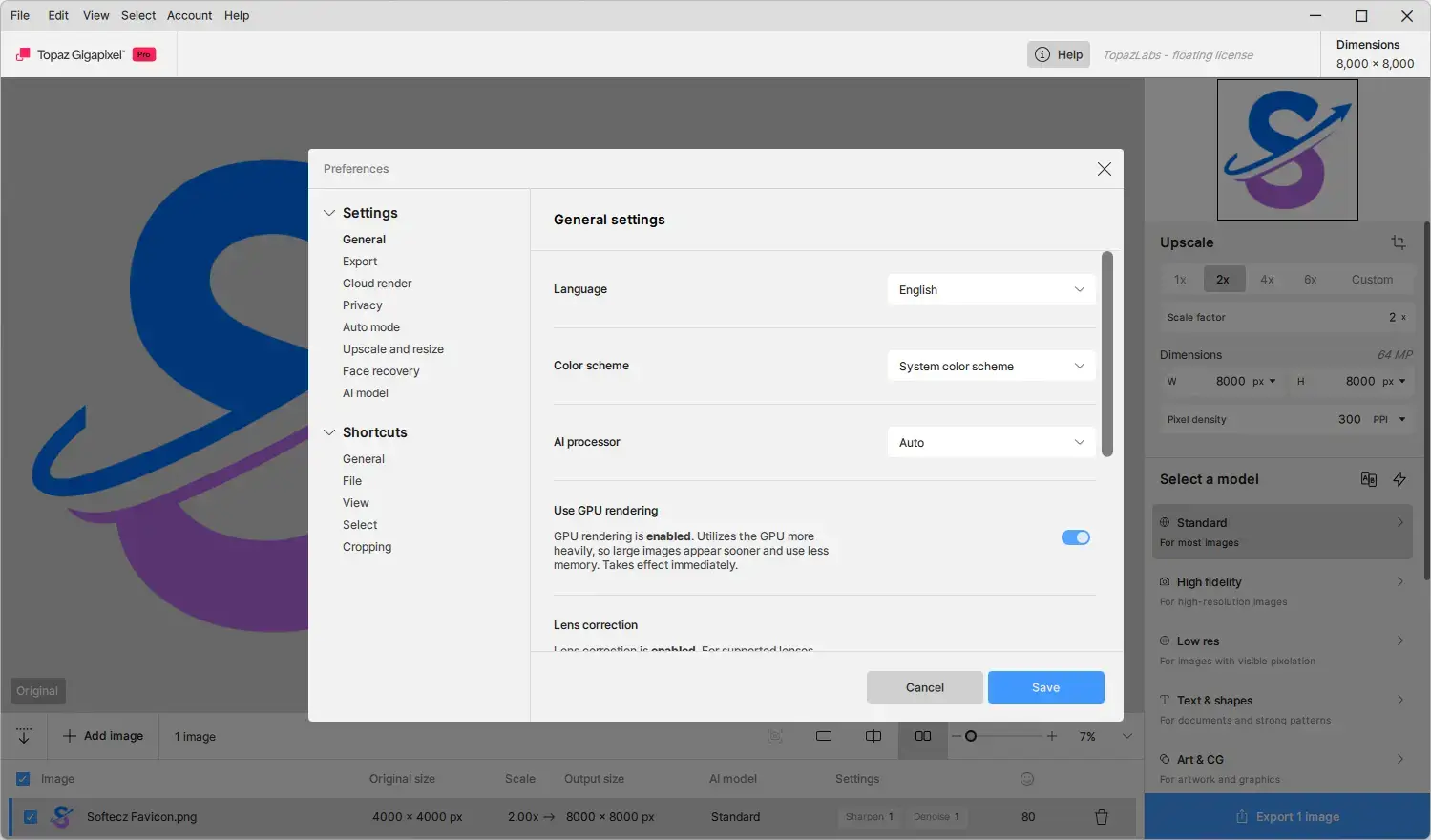
- Color Scheme: Switch between Light and Dark themes in Preferences.
Color and Export
- RAW and CMYK Support: Work directly with supported RAW files and CMYK images.
- Custom ICC Profiles: Apply custom ICC profiles to support color-managed workflows.
- Color Space Options: Preserve the input image’s color space or select ProPhoto, sRGB IEC61966-2-1 black scaled, Adobe RGB (1998), Apple RGB, Wide Gamut, or CMYK U.S. Web Coated (SWOP) v2.
- Local or Cloud Export: Process images using your own graphics card or use cloud rendering for supported generative models.
- Export Controls: Set the filename, prefix, suffix, file format, compression level, and save location. You can also disable the option that adds applied filters to the filename.
Plugins
- Photoshop Plugin: Open the plugin through File > Automate > Topaz Gigapixel. The maximum pixel dimension is 30,000 pixels, and PSD files are not supported. Photoshop must be installed before Gigapixel, and the plugin installs automatically.
- Lightroom Classic Plugin: Right-click an image and select Edit In > Topaz Gigapixel. After processing, use Export to Adobe Lightroom Classic to return the result to Lightroom. You can select multiple images for batch editing. The plugin supports Lightroom Classic only. Sending RAW files from Lightroom is not recommended because the processed image returns as a TIFF.
- Plugin Limits: Cloud rendering and the export dialog are unavailable when Gigapixel runs as a plugin. The Photoshop plugin is not supported on Snapdragon PCs, but you can open an image directly in Gigapixel and export the processed result to Photoshop.
What’s New in Topaz Gigapixel Pro 1.4.0?
Topaz Gigapixel Pro 1.4.0 was released on October 12, 2026. This update focuses on preview performance, image loading, and several stability and compatibility fixes.
- Updated preview handling to improve performance:
- Various image loading utilities improved, preview now uses GPU.
- If you want the old preview, turn off GPU rendering in Preferences > General.
- Fixed Autopilot stalling when reloading an image.
- Updated Neuroserver for better Mac support.
- Fixed Windows flagging the app when Smart App Control is turned on.
Topaz Gigapixel Pro Tested Screenshots
System Requirements (Windows)
| Component | Requirement |
|---|---|
| Operating System | Windows 11 |
| Processor | Qualcomm Snapdragon X, X Plus, or X Elite |
| NPU and GPU | Qualcomm Hexagon NPU and Adreno GPU |
| RAM | 16 GB (24 GB for generative models) |
| Disk Space on C: | 55 GB |