
eM Client Pro: Boost Your Email, Skyrocket Your Productivity
eM Client Pro is a desktop email application for Windows that brings email, calendars, tasks, contacts, notes, and chat together in one workspace. Its latest version also introduces a collection of AI-powered tools to help with everyday communication. You can enable or disable these features based on your preferences, giving you control over how AI fits into your workflow.
eM Client Pro Information
- Developer: eM Client
- Platform: Windows
- Official Website: eM Client
eM Client Pro Overview

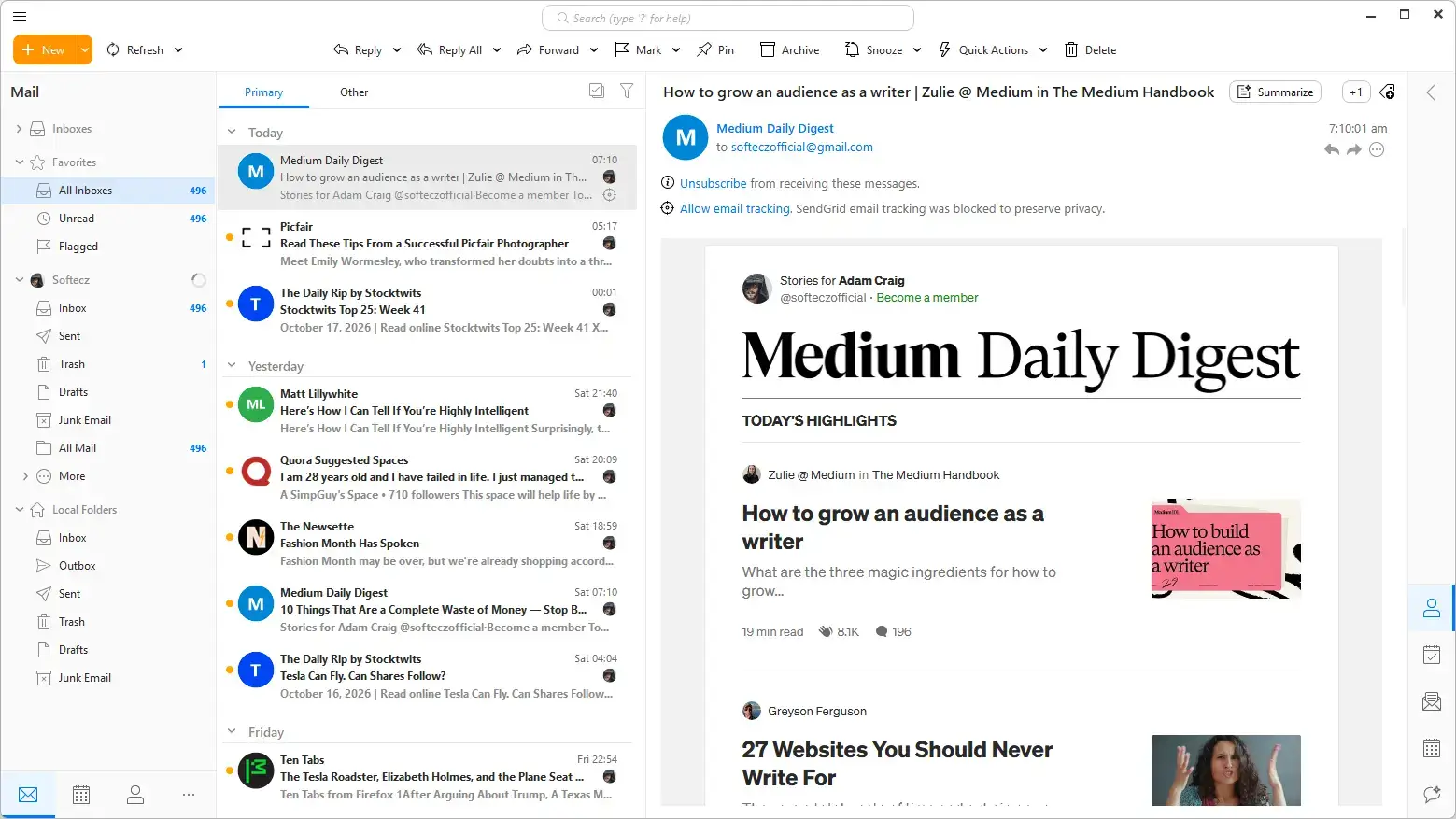
eM Client Pro combines email with several other tools you need for everyday communication and organization. Along with managing your inbox, you can schedule appointments, organize tasks, maintain contacts, create notes, and chat with others from the same application. Its straightforward interface makes it suitable for both personal and professional use, while its features also accommodate teams and larger organizations.
eM Client is used by more than 100,000 businesses and 4,000,000 people. Its users include organizations such as Raiffeisen, DPD, Toyota, Avis, McDonald’s, and Air Canada.
The application also supports a wide range of email services and connection methods. It works with common protocols such as POP3, SMTP, and IMAP, along with Exchange and Office 365. You can connect accounts from Google Workspace, Office 365, Outlook, Exchange, and other supported services, making it easier to manage multiple email accounts in one place.
Version 11 introduces a comprehensive set of AI tools designed to assist with writing, searching, and organizing messages. The AI Assistant sits in the sidebar, while other tools can draft replies, improve message wording, summarize conversations, find emails through natural-language searches, and create rules from written instructions. OpenAI is the current AI provider, and the application also supports connecting a custom AI provider.
Alongside these additions, Version 11 includes several technical changes. It supports both ARM and x64 systems, uses an updated Chromium rendering core, and introduces an MSIX installer. Together, these changes expand the application’s capabilities while providing additional flexibility for different Windows devices.
eM Client Pro Key Benefits
- Everything in One Workspace: Manage emails, calendars, tasks, contacts, notes, and chat without jumping between separate applications. The sidebar also gives you access to communication history, attachment history, your calendar, and your daily agenda.
- Works with Your Existing Email Services: Connect accounts from Google Workspace, Office 365, Outlook, Exchange, and other supported providers using standard email protocols.
- AI When You Need It: You can disable all AI features at once or turn off individual tools. On-demand features remain inactive until you choose to use them.
- Privacy and Message Protection: eM Client blocks email tracking pixels automatically and supports encrypted and digitally signed messages through PGP or S/MIME. The optional eM Sync service also encrypts synchronized settings before uploading them.
- Less Repetitive Work: Tools such as Command Palette, Quick Actions, Quick Texts, templates, and fast search help reduce the number of steps needed for common tasks.
- Better Inbox Organization: Snooze, message pinning, Watch for Reply, and Inbox Categories help you prioritize important conversations and keep your inbox manageable.
- Separate Work and Personal Accounts: Profiles keep accounts in separate databases, each with its own settings and color scheme.
- A Personalized Interface: Choose a built-in theme, including Dark mode, install themes created by other users, or design your own with the theme editor.
- Consistent Settings Across Devices: eM Sync can synchronize account configurations, application settings, signatures, templates, and Quick Texts between supported desktop and mobile devices.
- Support for 20 Languages: The interface is available in English, Czech, Danish, Dutch, German, Greek, Spanish, French, Hungarian, Italian, Korean, Japanese, Norwegian, Polish, Portuguese, Russian, Slovak, Swedish, Turkish, and Chinese.
eM Client Pro Key Features
AI Features
- AI Assistant: The AI Assistant remains available in the sidebar as you move between different sections of the application. You can use everyday language to find and open emails, flag or pin messages, move conversations, organize your inbox, draft replies, look up information online, and prepare complex or bulk emails. You can also save favorite prompts, adjust the effort level for a task, and select the AI model you want to use.
- Reply with AI: Draft a response to an email with a single click. You can request a general reply, a thank-you message, a polite refusal, a request for further information, or a note explaining that someone else should handle the message. The generated text remains editable before you send it.
- AI Writing Composer: Use the writing assistant directly in the compose window. When no text is selected, it can suggest content for a message, announcement, or information request, or you can enter your own instructions. Select existing text to shorten it, expand it, proofread it, rephrase it, change its tone, or rewrite it in the first person.
- AI Summarize: Use the button beside the subject line to get the main points from an email or an entire conversation. A separate setting lets you disable this feature if you prefer not to use it.
- Natural Language Search: Press Ctrl + Shift + U or open the feature from Tools, then describe the information you’re looking for in a normal sentence. eM Client converts your description into searchable keywords.
- AI Rule Creation: Describe how you want incoming or outgoing messages to be handled, and AI can build a rule using the available conditions and actions.
- Write in My Style: Set up personalized AI writing preferences for individual accounts. You can describe your writing style yourself or let AI generate a description and learn from your sent messages. Both processes start only when you initiate them through Settings.
- Quick Reply Buttons: Short suggested responses appear beneath an opened message. Select one to create a draft based on that suggestion.
- Task and Event Detection: When an email contains a date or a to-do item, eM Client can help turn it into a calendar event or task directly from the message, saving you from entering the details manually.
AI Controls and Connections
- Turn AI Off Completely: Go to Settings, open Artificial Intelligence, and select General to hide all AI buttons. With AI disabled this way, nothing is sent to the AI provider through these features.
- Switch Off Individual Features: Under Settings > Artificial Intelligence > Features, you can separately disable quick reply buttons, task detection, event detection, and email summarization.
- Data Handling: Text used for AI generation, analysis, or editing is sent to the AI provider and, according to the supplied product information, is not stored or logged by eM Client. The application does not scan your mailbox in the background.
- Custom AI Provider: Connect your own AI provider using your own key, or use the eM Client AI Add-on.
- MCP Support: Connect an AI agent to your eM Client data through the MCP protocol, allowing the agent to work with that data.
- Inbox Categories: Organize incoming messages into categories such as Primary, Social, and Updates. You can move messages between categories manually or create rules to sort them automatically.
- Quick Actions: Create macros that carry out several actions on a message at once.
- Pin Messages: Keep important emails at the top of the message list and unpin them when they are no longer a priority.
- Snooze: Temporarily postpone messages so you can return to them later and keep your inbox organized.
- Watch for Reply: Track important messages when you’re waiting for an answer, helping you avoid overlooking a response.
- Advanced Rules: Build rules with multiple conditions and actions for incoming or outgoing mail. Start from a template in the Rules library, create a rule with AI assistance, or configure one yourself. Rules can operate locally or synchronize with Gmail.
- Send Later: Schedule messages to be sent at a date and time you choose.
- Instant Translation: Use built-in translation tools and spell-checking to help communicate across language barriers.
- Cloud Storage Attachments: Share very large files as links through Dropbox, OneDrive, Google Drive, ownCloud, or Nextcloud.
- All Attachments View: Browse and search attachments from all your connected accounts in one place.
- Conversations and Thread View: Group related messages into conversations and review individual emails within each thread.
- Quick Text: Save commonly used text snippets and insert them into messages with a single button.
- Templates and Signatures: Create reusable email templates and use local signatures or signatures synchronized with Gmail and Exchange.
- Tags: Organize messages with local tags or use existing Gmail labels and Exchange categories.
- Mass Mail: Send individually customized messages to multiple recipients in one operation.
- Folder Color: Assign colors to folder names or icons to make them easier to identify.
- Superfast Search: Search through messages and related information quickly.
Calendar and Tasks
- Calendar Sync: Bring calendars and tasks from services such as Gmail and iCloud into one customizable view.
- Advanced Task Management: Manage tasks across the application, delegate work to colleagues, set reminders, organize items with tags, and use a view based on the Getting Things Done method.
- Daily Agenda Sidebar: See a summary of the day’s events directly in the sidebar.
- Online Meetings: Connect services such as Zoom, MS Teams, Google Meet, Webex by Cisco, GoToMeeting, IceWarp Video Conferences, or Meetn. You can then create an online meeting from your calendar with a single click.
- Meeting Invitations and Confirmations: Send meeting invitations and receive responses from participants.
- Reminders: Receive notifications for upcoming events and tasks.
- Advanced Search and Filtering: Filter calendar events and tasks to find specific items more quickly.
- Internet Calendars: Subscribe to calendars published online.
- Weather Forecast: Check the weather forecast from within the calendar.
- Free/Busy View: Review availability when arranging meetings.
Contacts
- Multiple Views: Display your contacts in different layouts to suit the way you prefer to browse them.
- Communication History: Review previous conversations associated with a contact.
- Attachment History: Find files sent to or received from a particular person.
- Organization Tools: Use categories, contact merging, and duplicate detection to keep your address book organized.
- Sync: Synchronize contacts with Gmail, iCloud, and other supported services.
- Detailed Data Fields: Store comprehensive contact information using a wide range of available fields.
Notes
- Local and Server-Side Notes: Keep notes on your computer or synchronize them with supported Exchange, Office 365, IceWarp, and CalDAV providers that offer a Notes folder.
- Advanced Notes Editor: Create notes with pictures and attachments using a familiar editing interface.
- Tags in Notes: Organize and filter notes with tags that work throughout the application.
Chat
- Many Chat Services: Connect to Jabber and other XMPP-based services, as well as MS Teams, Slack, Rocket.Chat, Matrix.org, and IceWarp TeamChat.
- Group Chat and Multichat: Hold conversations with several people at once. Channels are also supported for MS Teams, Slack, Rocket.Chat, Matrix.org, and IceWarp TeamChat accounts.
- File Transfer: Send files directly through the chat window.
- Email and Chat Together: View email and chat conversations associated with the same contact in one place.
Workspace and Customization
- Command Palette: Use a keyboard shortcut, start typing, and run almost any available action without navigating through menus.
- Unique Sidebar: Switch between sections such as Agenda, communication history, daily calendar, multichat threads and channel replies, pending invitations, and attachment history. The Agenda view includes events, tasks, birthdays, and emails that need attention.
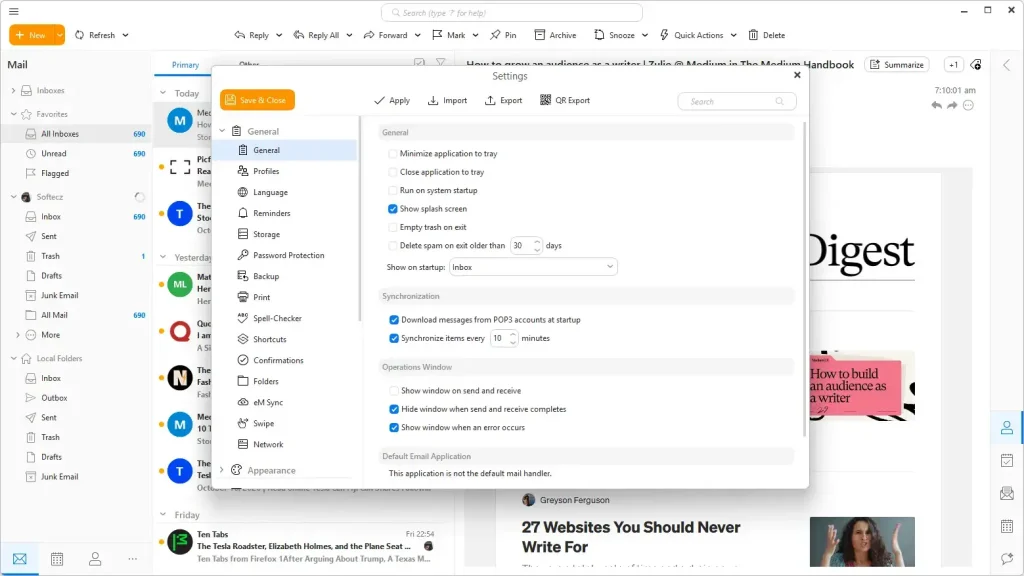
- Profiles: Keep accounts in separate databases with their own settings and color codes, making it easier to identify the profile you’re currently using.
- Themes: Choose a built-in appearance, including Dark mode, install community-created themes, or design a custom theme with the editor.
- Touch Support: Use the application on touchscreen devices with support for swipe gestures.
- Automatic Backup: Back up your data while the application is running.
- Localization: Switch the interface between 20 supported languages.
Security and Sync
- Message Encryption: Encrypt and digitally sign emails through S/MIME or PGP. eM Keybook also lets you upload private keys and look up recipients’ public keys, including through keys.openpgp.org and ProtonMail.
- Anti Mail Tracking: Blocks tracking pixels so you can read emails without automatically letting the sender know they have been opened.
- eM Sync: This optional service synchronizes account configurations, application settings, signatures, email templates, and Quick Texts. Before uploading, your device encrypts the data with a 256-bit AES key derived from your eM Sync password. You choose what to synchronize, and the application shows conflicting changes rather than silently overwriting them.
- Sync Controls: Choose whether newly added accounts should always upload to eM Sync, ask for confirmation first, or never upload. You can also sign out of eM Sync on a device to stop synchronization there.
What’s New in the eM Client Pro 11.0.1201?
eM Client Pro 11.0.1201, released on October 14, 2026. According to the official changelog, this update includes:
- Added a new set of themes.
- Included bug fixes.
eM Client Pro Tested Screenshots
System Requirements (Windows)
| Component | Requirement |
|---|---|
| Operating System | Windows 10 and Windows 11 |
| Architecture | x64 and ARM |
| Installer Format | MSIX |